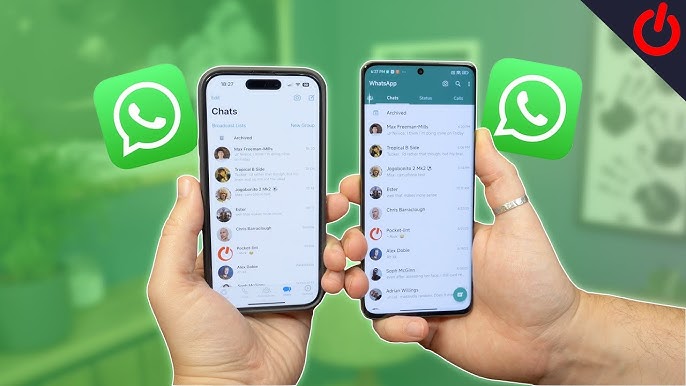
Have you ever wished you could use WhatsApp on your laptop while your phone is charging in another room? Or maybe you want to stay connected on your tablet without switching devices constantly.
Good news — WhatsApp now officially supports multiple devices. In this guide, you will learn exactly how it works, how to set it up, and how to get the most out of it.
What Is WhatsApp Multi-Device Support?
WhatsApp’s multi-device feature allows you to use one WhatsApp account on up to 5 devices at the same time. This includes your phone plus up to 4 additional devices like laptops, tablets, or WhatsApp Web.
Before this feature, your phone had to stay online for WhatsApp to work on other devices. Now, each linked device works on its own — even if your main phone is turned off or has no internet.
Key Features and Benefits
- ✅ Use WhatsApp on 4 extra devices without keeping your phone nearby
- ✅ Works on tablets (Android and iPad now supported)
- ✅ WhatsApp Web and Desktop stay connected independently
- ✅ End-to-end encryption works on all linked devices
- ✅ No need for constant phone internet — linked devices work alone
- ✅ Sync messages across all devices in real time
This is especially helpful for people who work from a computer and want to reply to messages without picking up their phone every few minutes.
How to Link WhatsApp to Multiple Devices — Step by Step
Method 1: Link a Computer or Laptop (WhatsApp Web)
- Open your browser and go to web.whatsapp.com
- You will see a QR code on screen
- On your phone, open WhatsApp
- Tap the three dots (Android) or Settings (iPhone)
- Select Linked Devices
- Tap Link a Device
- Scan the QR code shown on your computer screen
- Done! WhatsApp will now work in your browser
Method 2: Link WhatsApp Desktop App
- Visit whatsapp.com/download and install the desktop app
- Open the app — a QR code will appear
- Follow the same steps above to scan with your phone
- Your chats will load automatically
Method 3: Link a Tablet (Android or iPad)
- Install WhatsApp from your tablet’s official app store
- Open the app and tap Link this device as a companion
- On your main phone, go to Linked Devices → Link a Device
- Scan the QR code shown on your tablet
- Your WhatsApp account is now active on the tablet too
Quick Tip: You do not need a SIM card on your tablet. It links directly to your phone account.
How Many Devices Can You Link?
| Device Type | Allowed |
|---|---|
| Main Phone | 1 |
| Extra Phones | Up to 1 additional |
| Tablets | Supported |
| WhatsApp Web/Desktop | Up to 4 total linked |
| Total Devices | Up to 5 |
WhatsApp allows one primary phone and up to 4 companion devices at the same time.
Pros and Cons of WhatsApp Multi-Device
✅ Pros
- Very easy to set up — takes less than 2 minutes
- Your phone does not need to be on or online
- Messages sync automatically across all devices
- End-to-end encryption is maintained
- Great for work-from-home users and remote teams
❌ Cons
- Some features are limited on linked devices (e.g., live location, broadcast lists)
- You cannot link two different phone numbers on one device
- Companion devices log out after 14 days of inactivity
- Voice and video calls may vary by device type
Practical Tips for Using WhatsApp on Multiple Devices
1. Log out from devices you no longer use Go to Linked Devices on your phone and remove any old or unused devices. This keeps your account secure.
2. Use WhatsApp Desktop for faster typing If you reply to many messages daily, the desktop app makes it much faster to type and manage conversations.
3. Enable notifications on only one device To avoid getting the same notification on 3 devices at once, adjust notification settings on each device separately.
4. Lock your linked devices Always use screen lock or password protection on computers or tablets where WhatsApp is linked. This protects your private messages.
5. Check your linked devices regularly Once a month, review the list of linked devices. If you see a device you do not recognize, remove it immediately.
FAQs — WhatsApp Multiple Devices
Q1: Can I use the same WhatsApp account on two phones? Yes! WhatsApp now allows you to link a second phone as a companion device. Go to Linked Devices on your main phone and follow the steps to add another phone.
Q2: Does my main phone need to stay on for linked devices to work? No. With multi-device support, your linked devices work independently. Even if your phone is off or offline, you can still send and receive messages on other devices.
Q3: Will my messages sync across all devices? Yes. Messages are synced across all linked devices in real time. However, message history from before linking a new device may not appear on that device.
Q4: Is it safe to use WhatsApp on multiple devices? Yes, it is safe. WhatsApp uses end-to-end encryption on all linked devices. Just make sure the devices are yours and that they are protected with a password or screen lock.
Q5: What happens if I link too many devices? WhatsApp allows a maximum of 5 devices (1 main phone + 4 others). If you try to add a 6th, you will need to remove one of the existing linked devices first.
Conclusion
Using WhatsApp on multiple devices is simple, safe, and incredibly useful. Whether you are working from your laptop, relaxing with your tablet, or just want a backup option — WhatsApp’s multi-device feature has you covered.
Setting it up takes less than 2 minutes, and once it is done, all your devices stay in sync automatically.
💡 Get started today by opening WhatsApp on your phone, going to Linked Devices, and adding your first companion device. You will wonder how you managed without it!
Last updated: 2026 | Based on the latest WhatsApp features available globally