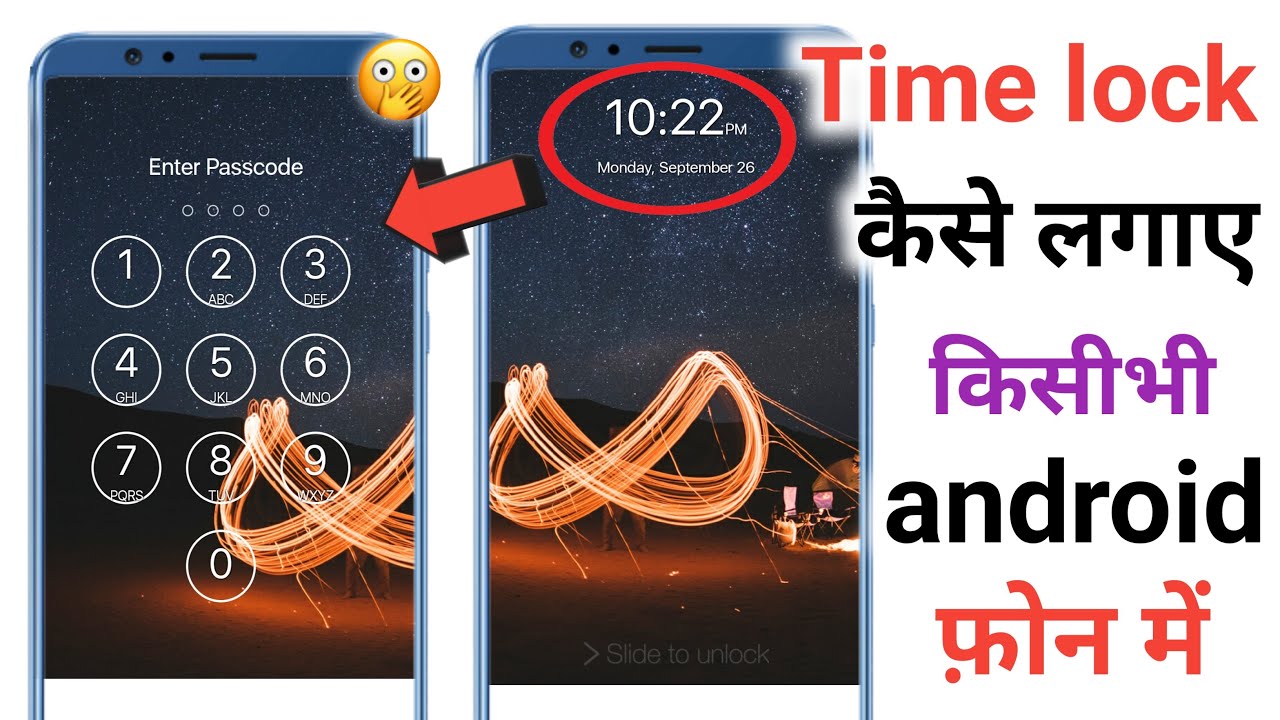
Learn how to set time lock on your mobile phone with easy steps for Android and iPhone. Reduce screen time, limit apps, and improve focus using Digital Wellbeing and Screen Time features. Simple guide for 2026.
In today’s fast-paced world, our phones can easily take over our day. Many people want to control how much time they spend on apps like social media, games, or YouTube. Setting a time lock on your mobile is a smart way to manage screen time, boost productivity, and create healthier habits.
Time lock usually means setting limits on app usage so the app locks or pauses after a certain time. In this complete guide, you will learn simple steps for both Android and iPhone, plus extra tips, best practices, and answers to common questions. Whether you want to help yourself or your kids, this article has you covered.
What is Time Lock on Mobile Phones?
Time lock on mobile refers to features that restrict how long you can use certain apps or the entire device. Once the time limit is reached, the app becomes unavailable until the next day or until you unlock it with a passcode.
On Android, this is handled mainly through Digital Wellbeing. On iPhone, it’s called Screen Time. These built-in tools are free, safe, and easy to use. They help track usage and enforce limits automatically.
Many people use time lock to fight addiction to scrolling, improve sleep, or create focus time for work and study.
Why You Should Set Time Lock on Your Phone
Excessive screen time can affect sleep, mental health, and productivity. Here’s why setting time limits helps:
- Reduces distractions and helps you focus better
- Improves sleep by limiting late-night use
- Creates more time for real-life activities and family
- Helps parents control kids’ phone usage safely
- Builds better digital habits for long-term well-being
Studies and user reports show that people who set app limits often cut their screen time by 30-50% within weeks.
How to Set Time Lock on Android Phones (Digital Wellbeing)
Android phones make it very easy to set app timers.
Step-by-Step Guide:
- Open the Settings app on your phone.
- Scroll down and tap Digital Wellbeing & Parental Controls.
- Tap on the screen time graph or Dashboard to see your app usage.
- Find the app you want to limit and tap the hourglass icon next to it.
- Set your daily time limit (for example, 30 minutes for Instagram).
- Tap OK to confirm.
Once the limit is reached, the app icon turns gray and the app pauses. It resets automatically at midnight.
Set a PIN for App Limits (Important for Security):
Go to Digital Wellbeing → App limits → App limits PIN. Turn it on and create a 4-digit PIN. This stops you (or your kids) from easily removing the limits.
Extra Features on Android:
- Focus Mode: Pause distracting apps temporarily.
- Bedtime Mode: Grayscale screen and silent notifications at night.
- Screen Time Goal: Set overall daily usage targets.
These features work on most Android phones in 2026, including Samsung, Google Pixel, and others.
How to Set Time Lock on iPhone (Screen Time)
Apple’s Screen Time is powerful and user-friendly.
Step-by-Step Guide:
- Open Settings and tap Screen Time.
- If not enabled, tap Turn On Screen Time.
- Tap App Limits → Add Limit.
- Choose app categories (like Social or Games) or specific apps.
- Set the daily time limit and tap Add.
- For stronger control, set a Screen Time Passcode so limits cannot be changed easily.
Downtime Feature:
This locks most apps during specific hours (like bedtime). Only allowed apps (calls, messages) will work.
For Parents: Use Family Sharing to set limits remotely on your child’s iPhone.
iOS 26 and later versions have even better options, including the ability to fully block apps by setting zero-minute limits.
How to Set Overall Screen Time Limits and Schedules
Apart from individual apps, you can lock the whole phone during certain times:
On Android:
Use Bedtime Mode or set daily screen time goals in Digital Wellbeing. For kids, Google Family Link offers remote locking and bedtime schedules.
On iPhone:
In Screen Time, go to Downtime and schedule hours when only selected apps are available.
This is perfect for study time, work hours, or family dinners.
Best Third-Party Apps for Stronger Time Lock (2026)
While built-in tools are good, some people need stricter options:
- Freedom — Blocks apps and websites across devices.
- ScreenZen — Adds mindful prompts before opening apps.
- AppBlock (Android) — Advanced blocking with schedules.
- Qustodio or Bark — Great for parental control.
Always download from official stores (Play Store or App Store) for safety. Use them only when built-in features are not enough.
Time Lock for Parents: Managing Kids’ Screen Time
Parents love time lock features for children.
Android: Use Google Family Link to set daily limits, bedtime, and approve app downloads remotely.
iPhone: Through Family Sharing and Screen Time, you can control everything from your own phone.
Tips:
- Start with reasonable limits and adjust gradually.
- Explain the reason to your kids so they understand.
- Combine with family rules for best results.
Pros and Cons of Using Time Lock Features
Pros:
- Easy to set up and completely free (built-in).
- Helps break bad scrolling habits.
- Improves focus and mental health.
- Great for families.
Cons:
- You might feel frustrated when apps lock (at first).
- Some apps may have workarounds.
- Overly strict limits can be annoying.
- Third-party apps may need subscriptions.
Overall, the benefits are much greater for most users.
Practical Tips to Make Time Lock Work Better
- Start small: Limit one or two problem apps first.
- Combine with grayscale mode (makes phone less attractive).
- Place your phone in another room during focus time.
- Review your weekly usage report every Sunday.
- Use the “Ignore Limit” option wisely — only for important cases.
- Set phone-free zones like bedroom or dining table.
- Track your progress for motivation.
Consistency is the key. Many people see big improvements in just 2-3 weeks.
Common Problems and How to Fix Them
- App limit not working? Make sure you have set a passcode/PIN.
- Want to remove limits? Go back to the same settings and delete the timer.
- Battery drain? Built-in features use very little extra battery.
- Kids bypassing? Use Family Link or Screen Time passcode.
Always keep your phone updated for the latest features and security.
FAQs About Setting Time Lock on Mobile
1. Does time lock completely block the app?
Yes, after the limit, the app pauses or shows a lock screen. You can extend time once a day in most cases.
2. Can I set different limits for different days?
Yes. Both Android and iPhone allow custom limits for weekdays and weekends.
3. Will time lock work on WhatsApp or important apps?
You can exclude important apps like messaging and calls.
4. Is it safe for kids?
Absolutely. Built-in tools from Google and Apple are designed with privacy and safety in mind.
5. Can I set time lock on specific websites?
Yes, through browser settings or third-party apps like Freedom.
Conclusion
Setting time lock on your mobile in 2026 is easier than ever. Whether you use Android’s Digital Wellbeing or iPhone’s Screen Time, these tools help you take control of your digital life. Start today with simple limits and build better habits step by step.
A balanced phone usage leads to more productivity, better sleep, and happier real-life moments. Try it for one week and see the difference yourself.
Which feature will you try first — app timers or bedtime mode? Share your experience in the comments below!
Enjoy a more focused and mindful phone experience! 📱✨