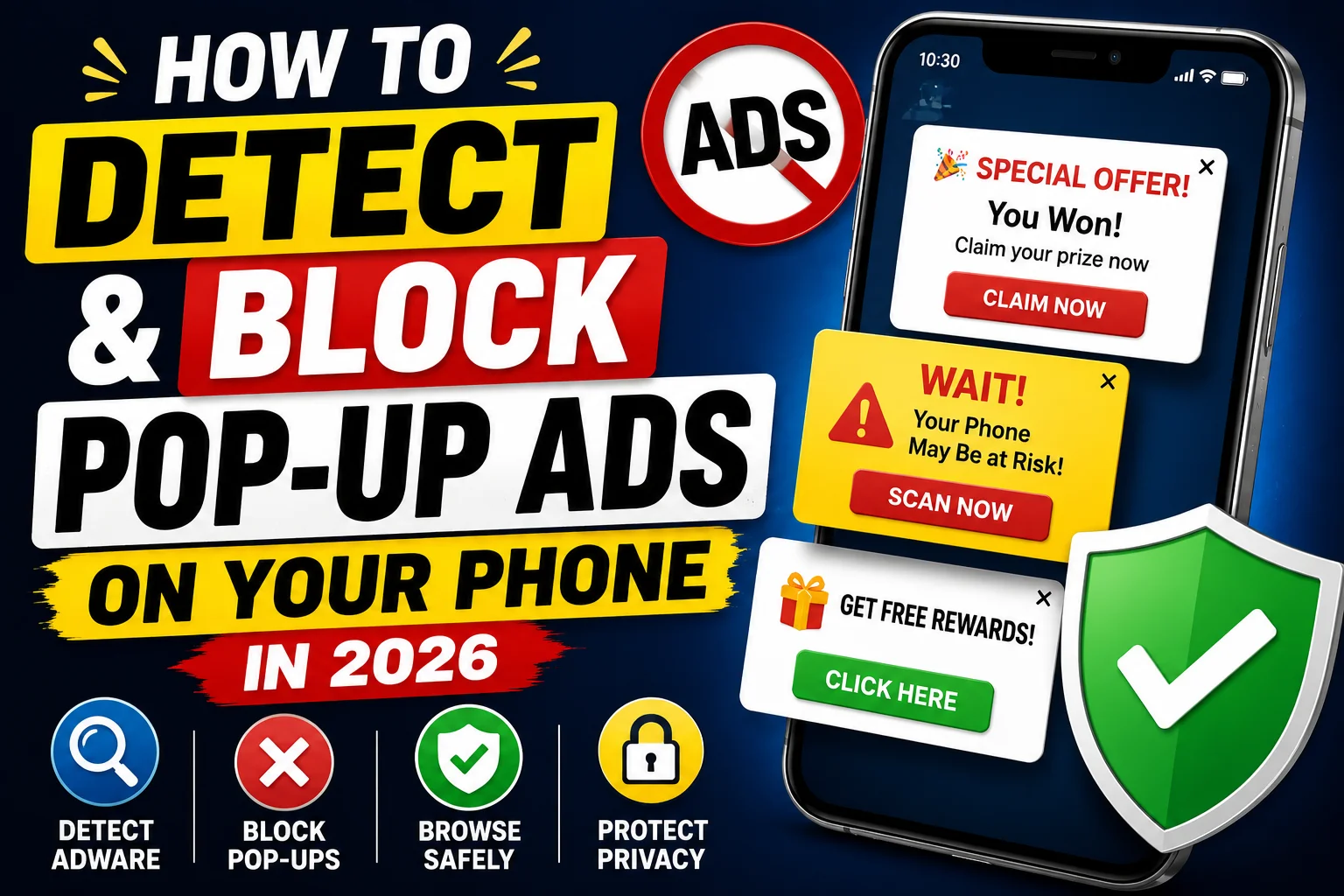
Is your phone constantly interrupted by pop-up ads? You tap one thing and suddenly an ad fills your whole screen. It is one of the most frustrating things about using a smartphone today. The good news is that you do not have to live with it.
In this guide, you will learn exactly what causes pop-up ads, how to detect where they are coming from, and the best ways to block them — on both Android and iPhone — without any technical skills.
What Are Pop-Up Ads on Phones?
Pop-up ads are unwanted advertisements that suddenly appear on your phone screen, often blocking what you are doing. They can show up while you are browsing the web, using an app, or sometimes even on your home screen.
These intrusive ads are often caused by adware, poorly designed apps, aggressive browser settings, or misleading notifications. Some pop-ups are just annoying, but others can be linked to harmful software that puts your privacy at risk.
Why Do Pop-Up Ads Keep Appearing on Your Phone?
Understanding the cause helps you fix the problem faster. Here are the most common reasons:
Ad-supported free apps. Many free games and utility apps show full-screen ads to earn money. This is legal, but it becomes a problem when the ads are excessive or impossible to close.
Adware or malware. Some apps from unknown sources contain hidden adware that can show ads at any time, even on the home screen.
Browser pop-ups. Websites can trigger pop-up windows if your browser settings are not configured to block them.
Overlay permissions. Apps that are allowed to “draw over other apps” can display ads anytime, even when you are not using that app.
Accidental notification permissions. You may have visited a website and accidentally tapped “Allow” on a notification request. Now that site sends you ads disguised as notifications.
How to Detect Which App Is Causing Pop-Up Ads
Before you can block the ads, you need to find the source. Here is how:
Check recently installed apps. Think about when the pop-ups started. Did you install something new around that time? Free launchers and flashlight apps are common culprits — they often hide ad software inside.
Use Safe Mode. Restart your Android phone in Safe Mode. This temporarily turns off all third-party apps. If the ads stop in Safe Mode, a third-party app is causing them.
Check app permissions. Go to Settings, then Apps, and look for any app that has permission to “appear on top” or “display over other apps.” Remove this permission from apps you do not fully trust.
Review notification settings. Go to Settings, then Notifications, and look for any website or app sending unwanted notifications. Turn them off one by one.
How to Block Pop-Up Ads on Android
Here are the most effective methods:
Block pop-ups in Chrome. Open Chrome, tap the three dots in the top-right corner, go to Settings, then Site Settings, then Pop-ups and Redirects. Toggle the switch to Blocked to stop pop-ups.
Block pop-ups in Firefox. Tap the three-dot icon in the upper-right corner, select Settings, scroll down to Notifications, and toggle Not Allowed. Firefox also has a built-in ad blocker that is active by default.
Reset your advertising ID. Go to Settings, then Privacy and Security, then Ads, and reset your advertising ID. This reduces targeted ads across many apps.
Revoke overlay permissions. Go to Special App Access, then Appear on Top, and revoke permission from any suspicious apps.
Clear browser cache. Old cached data from websites can cause pop-ups to reappear. Clear your browser history and cache regularly to stay clean.
How to Block Pop-Up Ads on iPhone
iPhones also deal with pop-up ads, especially in browsers. Here is what you can do:
Block pop-ups in Safari. Go to Settings, then Safari, and turn on “Block Pop-ups.” You can also turn on “Fraudulent Website Warning” for extra safety.
Limit ad tracking. Go to Settings, then Privacy and Security, then Apple Advertising, and turn off Personalized Ads.
Remove notification permissions from websites. In Safari settings, go to Notifications and remove any websites that are sending you unwanted alerts.
Use content blockers. Safari on iPhone supports content blocker apps from the App Store. These work inside your browser to stop ads and trackers before they load.
How to Block Pop-Up Ads on Samsung Phones
Samsung Galaxy phones have their own browser with useful built-in tools. Open the Samsung Internet app, tap the Menu (three horizontal lines), go to Settings, tap Privacy Dashboard, and turn on Block Pop-ups.
You can also go to the Ad Blockers section inside Samsung Internet and install a dedicated ad blocker directly from that menu. This gives you an extra layer of protection without needing any outside tools.
Best Tools to Help Block Pop-Up Ads
You do not need to rely only on browser settings. These tools offer stronger protection:
Ad-blocking browsers. Some browsers come with built-in ad blocking. Firefox for Android blocks most pop-ups by default and supports additional extensions for even more control.
Security and privacy apps. Trusted security apps can scan your phone for adware and block harmful sites automatically. They work in the background without slowing down your phone.
Private DNS. Setting a private DNS on your Android phone can block ads at the network level, meaning ads are stopped before they even reach your browser or apps. Go to Settings, then Network, then Private DNS, and enter a trusted DNS address.
VPN with ad blocking. Some VPN services include built-in ad and tracker blocking. These can block pop-ups across all apps and browsers at once, not just inside one browser.
Pros and Cons of Blocking Pop-Up Ads
Pros: Faster browsing since pages load without ads. Better privacy because trackers are also blocked. Less risk of clicking on a harmful or misleading ad. A cleaner and less stressful phone experience overall.
Cons: Some websites rely on ads to stay free, so blocking ads may affect their ability to earn revenue. A small number of websites may not work correctly when pop-ups are blocked. Some ad blockers require a small setup process before they are fully active.
Practical Tips to Keep Your Phone Ad-Free
Here are some habits that will help you stay pop-up free in the long run:
Only install apps from official stores like Google Play or the Apple App Store. Be cautious with free apps that ask for unusual permissions. Never tap “Allow” on notification requests from websites you do not recognize. Run a security scan every month to check for adware. Keep your browser and phone software updated, as updates often include better ad and malware protection. If an app you never use suddenly appears on your phone, uninstall it immediately.
Frequently Asked Questions
Why do pop-up ads appear on my home screen? Home screen pop-ups are almost always caused by a third-party app that has overlay permission. Check which apps have permission to appear on top and remove that access from any app you do not fully trust.
Can pop-up ads harm my phone? Most pop-up ads are just annoying, but some can be dangerous. Certain pop-ups try to trick you into tapping links that lead to harmful websites or fake login pages. Always close suspicious pop-ups without tapping any button inside them.
Does turning on airplane mode stop pop-up ads? It can temporarily stop ads since it cuts off your internet connection, but it is not a real solution. The ads will return once you reconnect. It is better to find and remove the source of the problem.
Do I need to root my phone to stop pop-up ads? No. You can stop almost all pop-up ads without rooting your phone by adjusting settings, using a good browser, and removing problem apps.
What is the fastest way to stop pop-up ads right now? Block pop-ups in your browser, disable unwanted notifications in your phone settings, and uninstall any apps you recently added that seem suspicious. These three steps solve most pop-up problems within minutes.
Conclusion
Pop-up ads are a common problem, but they are also very easy to fix once you know what to look for. Start by identifying which app or website is behind the ads, then use your browser settings, app permissions, and a trusted security tool to block them for good.
A few minutes of setup today can give you a much smoother and safer phone experience every single day.
Ready to take control of your phone? Explore tools and browser settings that work best for your device and start blocking unwanted ads today.