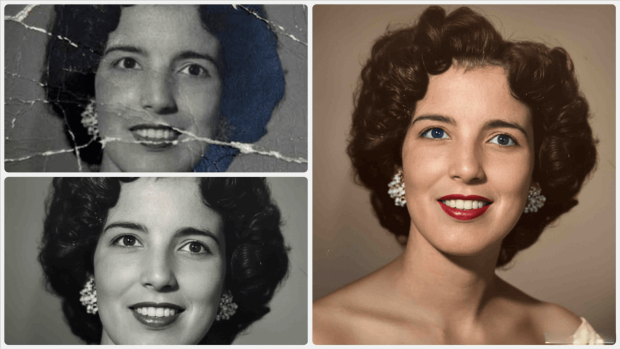
Have you ever looked at an old, blurry family photo and wished it could look brand new? You’re not alone. Millions of people around the world have precious memories stored in faded, low-quality images — and now, thanks to modern AI technology, restoring and enhancing those photos has never been easier.
Enhance Photo
In this guide, you’ll learn exactly how to enhance old photos, convert them to stunning 8K HD resolution, and which tools actually work. Whether you’re a beginner or a photo enthusiast, this article is for you.
What Does It Mean to Enhance Old Photos and Convert to 8K HD?
Photo enhancement is the process of improving the quality of an old or damaged image. This includes fixing blur, removing noise, repairing scratches, and boosting colors.
Converting a photo to 8K HD resolution means increasing its pixel count to match ultra-high-definition quality — up to 7680 × 4320 pixels. This makes photos look sharp and clear even on large screens or when printed in large formats.
Thanks to AI upscaling technology, this process is now fully automated. The AI studies millions of images and learns how to intelligently fill in missing details — something that was impossible just a few years ago.
Key Benefits of Enhancing Old Photos
There are many great reasons why people choose to restore and upscale their old images:
- Preserve family memories — Turn faded grandparent photos into crystal-clear keepsakes.
- Print in large format — High-resolution images look stunning on canvas or poster prints.
- Share on social media — High-quality images get more engagement and look more professional.
- Restore damaged photos — Fix torn edges, water stains, and color fading automatically.
- Honor history — Restore old historical images for educational or personal use.
- No photography skills needed — AI tools handle everything for you automatically.
Best Tools to Enhance Old Photos and Convert to 8K HD
Here are some of the most reliable and beginner-friendly tools available today:
1. Remini
One of the most popular AI photo enhancement apps. It works great on faces and portraits. Upload a blurry photo and watch it transform into a sharp, high-definition image within seconds. Available on both mobile and web.
2. Topaz Gigapixel AI
A professional-grade desktop tool that specializes in upscaling images up to 600% without losing detail. It uses deep learning to add realistic texture and sharpness. Ideal for photographers and digital artists.
3. Let’s Enhance
A web-based tool that uses AI to upscale photos up to 16x their original size. It works well for old photographs, product images, and scanned documents. No software installation required — just upload and enhance.
4. Adobe Photoshop (Super Resolution)
Adobe’s built-in Super Resolution feature can double the resolution of any image with a single click. Perfect for users who already use the Adobe ecosystem for editing.
5. Upscayl
A completely free, open-source desktop application that upscales images using AI. It supports batch processing and works offline. A great choice for users who process many photos at once.
6. Icons8 Smart Upscaler
A simple, user-friendly online tool that enhances image resolution without any technical knowledge. Great for quick enhancements on the go.
Comparison: Online Tools vs. Desktop Software
| Feature | Online Tools | Desktop Software |
|---|---|---|
| Ease of Use | Very Easy | Moderate |
| Speed | Fast | Depends on PC |
| Internet Required | Yes | No |
| Best For | Beginners | Professionals |
| Cost | Free / Low Cost | Higher Price |
| Batch Processing | Limited | Yes |
Both options work well. Online tools are perfect for quick fixes, while desktop software gives you more control and power.
Pros and Cons of AI Photo Enhancement
✅ Pros
- Works automatically — no manual editing required
- Saves hours of professional editing time
- Makes old memories look brand new
- Accessible to people with no technical skills
- Affordable or even free options available
❌ Cons
- AI may sometimes add details that weren’t in the original photo
- Very heavily damaged photos may not restore perfectly
- High-resolution output files can be large in size
- Some professional-grade tools require a paid subscription
Practical Tips for the Best Results
Follow these simple tips to get the most out of your photo enhancement experience:
1. Start with the best quality scan you have. If you’re working with a physical photo, scan it at the highest resolution possible — at least 600 DPI. A better input always gives a better output.
2. Use face-focused tools for portraits. Tools like Remini are specifically trained on human faces. If your photo contains people, these tools will give dramatically better results.
3. Try more than one tool. Different AI tools have different strengths. If one tool doesn’t give you the result you want, try another. Comparing two or three outputs is always a smart idea.
4. Enhance before you crop. Always run the enhancement on the full image first, then crop or resize afterward. This keeps the maximum detail intact.
5. Save in lossless format. After enhancing, save your final image as a PNG or TIFF file instead of JPEG. This prevents quality loss from repeated saving and compression.
6. Be patient with heavily damaged photos. If a photo is severely torn or faded, you may need to combine AI enhancement with light manual editing for the best result.
Prompt here 👇
Enhance the portrait while strictly preserving

the subject's identity with accurate facial geometry.

Do not change their expression or face shape. Only

allow subtle feature cleanup without altering who they are.

Keep the exact same background from the reference image. No replacements, no changes, no new objects, no layout shifts. The environment must look identical.

The image must be recreated as if it was shot on a Sony Al, using an 85mm f1.4 lens, at fl.6, ISO 100, 1/200 shutter speed, cinematic shallow depth of field, perfect facial focus, and an editorial-neutral color profile.

This Sony A1 + 85mm f1.4 setup is mandatory. The final image must clearly look like premium full-frame Sony Al quality. Lighting must match the exact direction, angle, and mood of the reference photo.

Upgrade the lighting into a cinematic, subject-focused style: soft directional light, warm highlights, cool shadows, deeper contrast, expanded dynamic range, micro-contrast boost, smooth gradations, and zero harsh shadows.

Maintain neutral premium color tone, cinematic contrast curve, natural saturation, real skin texture (not plastic), and subtle film grain. No fake glow, no runway lighting, no oversmoothing.

Render in 4K resolution, 10-bit color, cinematic editorial style premium clarity, portrait crop, and keep the original environmental vibe untouched.

Re-render the subject with improved realism, depth, texture, and lighting while keeping identity and background fully preserved.

NEGATIVE INSTRUCTIONS:

No new background.

No background change.

No overly dramatic lighting.

No face morphing.

No fake glow.

No flat lighting.
Frequently Asked Questions (FAQs)
Q1: Can I really convert an old photo to 8K resolution? Yes, AI upscaling tools can significantly increase the resolution of old photos. While true 8K requires original data, AI intelligently reconstructs missing detail to produce near-8K quality results that look sharp and clear.
Q2: Is it safe to upload my personal photos to online tools? Most reputable tools have strong privacy policies and do not store or share your images. However, for very sensitive personal photos, using an offline desktop tool like Upscayl is a safer option.
Q3: Are AI photo enhancement tools free? Many tools offer free plans with basic features. For advanced features like batch processing or maximum resolution output, some tools offer affordable paid plans. There are also fully free tools like Upscayl available.
Q4: How long does the enhancement process take? Most AI tools enhance a single photo in just a few seconds to a couple of minutes, depending on the file size and the tool you’re using. Batch processing of multiple photos may take longer.
Q5: Will AI enhancement work on very old black and white photos? Absolutely. Many AI tools are excellent at enhancing black and white photos. Some even offer an AI colorization feature that adds natural-looking color to old black and white images.
Conclusion
Bringing old memories back to life has never been more accessible. With today’s powerful AI photo enhancement tools, anyone can take a faded, blurry old photograph and transform it into a stunning, high-resolution image — no technical experience required.
Whether you’re restoring a century-old family portrait or simply improving a low-quality snapshot, the tools available in 2025 make the process fast, easy, and incredibly effective.
Start with a free tool, experiment with a few options, and discover just how beautiful your old memories can look in 8K HD quality.
Enhance Photo
Explore the tools mentioned above and give your favorite old photos the quality they deserve. 📸