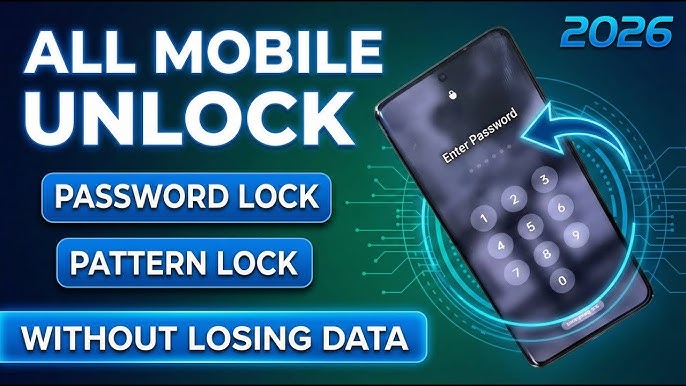
Forgetting your phone’s pattern lock can be stressful. Your Android device suddenly feels out of reach, with important photos, contacts, and apps locked inside. The good news is there are several ways to regain access. This complete guide explains simple, safe methods that work on most Android phones in 2026.
We will cover official methods, step-by-step instructions, brand-specific tips, pros and cons, and prevention advice. Always remember: these steps are only for your own device. Unlocking someone else’s phone without permission is illegal.
What is Pattern Lock and Why Do People Forget It?
Pattern lock is a security feature on Android phones where you draw a specific pattern on a 3×3 grid of dots to unlock the screen. It is popular because it is fast and easy to remember compared to long passwords.
People forget patterns due to:
- Using multiple devices with different locks
- Rarely using the pattern (relying on fingerprint or face unlock)
- Setting a complex pattern
- Phone not used for weeks or months
In 2026, most Android phones run Android 15 or 16, with stronger security. This means older tricks may not work, and factory reset is often required.
Common Reasons You Need to Unlock Pattern Lock
Many users face this issue after:
- Entering the wrong pattern too many times
- Switching to a new phone and forgetting the old pattern
- Kids or family members changing the lock accidentally
- After a software update that requires re-authentication
If your phone shows “Try again in 30 seconds” or asks for a Google account, you still have options before resetting everything.
Method 1: Use Google Account to Unlock Pattern (Older Devices)
This method works best on Android versions below 5.0 (very old phones). On newer devices, it is limited.
Steps:
- Enter the wrong pattern 5 times on the lock screen.
- Tap Forgot Pattern (if available).
- Sign in with the Google account linked to your phone.
- Set a new pattern or PIN.
Note: In 2026, this option is rare on modern phones. If you don’t see “Forgot Pattern,” move to the next methods.
Method 2: Unlock Using Google Find My Device
Google Find My Device is one of the safest official ways.
Step-by-step:
- On another phone or computer, go to android.com/find.
- Sign in with the same Google account linked to your locked phone.
- Select your device from the list.
- Choose Erase Device (this will remove the pattern lock but also delete all data).
- Follow the on-screen instructions to confirm.
After erasing, set up your phone again and restore from backup if you have one. Your phone must have been connected to the internet and location enabled before it locked.
Method 3: Factory Reset Using Recovery Mode
This is the most reliable method for any Android phone in 2026.
General Steps:
- Turn off your phone completely.
- Press and hold the correct button combination (usually Volume Down + Power, or Volume Up + Power — check your model).
- When the Android logo or recovery menu appears, release the buttons.
- Use volume buttons to navigate and power button to select.
- Choose Wipe data / Factory reset.
- Confirm and wait for the process to finish.
- Select Reboot system now.
Your pattern lock will be gone, but all data, apps, and settings will be erased. Back up regularly in future to avoid this pain.
Brand-Specific Ways to Unlock Pattern Lock
Different brands have extra options:
Samsung Phones:
- Use Samsung Find My Mobile (findmymobile.samsung.com).
- Log in with your Samsung account.
- Select Unlock option (may work without full data loss in some models).
Xiaomi / Redmi / POCO:
- Mi Account recovery options.
- Sometimes “Forgot Pattern” appears after several attempts.
Realme / OPPO / Vivo:
- Use Google Find My Device or factory reset.
- Some models support account-based recovery.
Google Pixel:
- Rely mainly on Find My Device and factory reset.
Always visit your phone manufacturer’s official support page for exact button combinations.
How to Unlock Pattern Lock Without Losing Data (Limited Options)
In 2026, completely unlocking without any data loss is difficult on locked modern Android phones due to security improvements.
Possible limited options include:
- If you can still receive notifications or use quick settings (some older workarounds).
- Using ADB commands (requires USB debugging enabled beforehand and technical knowledge).
- Professional recovery tools (use trusted ones only).
Important Warning: Many online tools promising “no data loss” are risky and may contain malware. Stick to official methods whenever possible. Data recovery after reset is sometimes possible with expert help, but not guaranteed.
Pros and Cons of Different Unlocking Methods
Google Find My Device:
- Pros: Official, remote, no need to touch the phone.
- Cons: Erases all data.
Factory Reset via Recovery:
- Pros: Works on almost every phone.
- Cons: Complete data loss.
Samsung Find My Mobile:
- Pros: Sometimes allows unlock without full wipe.
- Cons: Requires Samsung account and prior setup.
Third-party Software:
- Pros: May offer easier interface.
- Cons: Cost, security risks, and mixed success rates.
Practical Tips to Avoid Forgetting Pattern Lock
- Use a simple but secure pattern you can remember easily.
- Enable fingerprint, face unlock, or PIN as backup.
- Regularly back up your phone to Google Drive or cloud services.
- Note down your pattern in a secure password manager (not on the phone).
- Update your recovery email and phone number in Google account settings.
- Use biometric locks for daily use and pattern as secondary.
What to Do After Unlocking Your Phone
Once you regain access:
- Set a new, memorable lock (mix of pattern + biometric).
- Enable automatic backups.
- Turn on Find My Device.
- Install a reliable security app.
- Check for any pending software updates.
Best Practices for Android Security in 2026
Strong security protects your data but can make recovery harder if you forget the lock. Balance convenience with safety. Use strong but memorable patterns. Combine with biometrics. Keep Google and manufacturer accounts active and updated.
FAQs About Unlocking Pattern Lock
1. Can I unlock pattern lock without losing data in 2026? It is very difficult on modern Android. Most methods require factory reset. Regular backups are the best solution.
2. Does Google Find My Device work if my phone is offline? No. The phone needs to be connected to the internet for remote erase to work.
3. Will factory reset remove Google FRP lock? No. After reset, you may need to enter the previous Google account credentials (Factory Reset Protection).
4. Is it safe to use third-party unlocking tools? Only use well-known, reputable software from official websites. Avoid random APK files.
5. How to prevent this problem in future? Enable biometrics, keep backups, and maintain active Google/Samsung accounts with recovery info.
Conclusion
Forgetting your pattern lock is common, but recovering access is straightforward with the right steps. In 2026, Google Find My Device and factory reset remain the most reliable official methods. While they may result in data loss, proper backups make recovery easy.
Always prioritize your own device and official methods for safety. Take a few minutes today to set up backups and recovery options on your phone. This small habit can save hours of stress later.
Download App
If you have a specific phone brand or model, feel free to share more details for tailored advice. Stay safe and keep your data protected!