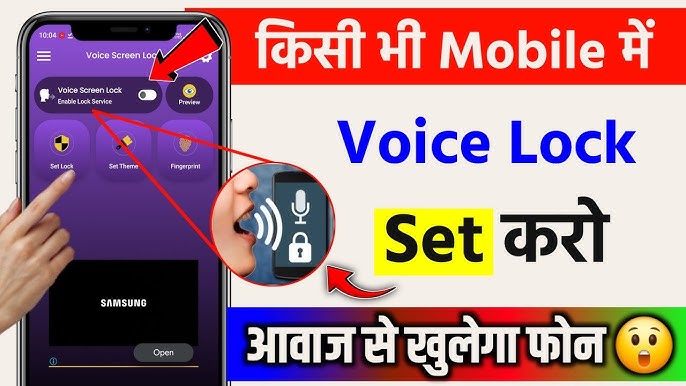
In 2026, using your voice to lock or control your Android phone has become more convenient than ever. Whether you want hands-free security, quick locking when someone approaches, or easier access, voice lock features help a lot.
This guide explains everything simply — from built-in Google tools to safe methods. You’ll learn multiple ways to set it up on any Android phone.
What is Voice Lock on Android?
Voice Lock lets you control your phone’s lock screen using spoken commands. You can lock the screen by saying a phrase or, in some cases, unlock it with your voice.
It combines Google Assistant, Accessibility features like Voice Access, and sometimes dedicated apps. While full voice unlocking has security limits, locking the phone and controlling it hands-free works very well. Many users love it for convenience and extra safety in public places.
Benefits of Using Voice Lock on Android
- Hands-free operation — lock your phone without touching it.
- Quick security when needed, like in crowded areas.
- Accessibility help for people with limited hand movement.
- Modern and futuristic feel.
- Works with routines for smart automation.
Voice lock is especially useful for drivers, parents, or anyone who wants faster phone control.
Different Ways to Enable Voice Lock on Android
There are three main approaches in 2026:
- Google Assistant + Routines (for locking)
- Voice Access (built-in accessibility tool)
- Third-party Voice Lock apps (with caution)
We’ll cover each one with clear steps.
How to Lock Your Android Phone with Voice Using Google Assistant
Google Assistant is the easiest and safest built-in way to lock your phone with voice.
Step-by-Step Guide:
- Open the Google App on your phone.
- Tap your profile picture in the top right.
- Go to Settings > Google Assistant.
- Tap Hey Google & Voice Match and turn on “Hey Google”.
- Train your voice by speaking the phrases when prompted.
- Now go to Routines in Assistant settings.
- Tap + New to create a new routine.
- Under “When I say…”, add a command like “Lock my phone” or “Lock screen now”.
- Under Actions, add “Lock phone” or open the screen lock.
- Save the routine.
Now just say “Hey Google, lock my phone” and your screen will lock instantly.
Tip: Enable Google Assistant on the lock screen for better access. Go to Google Home app > Settings > Lock screen > Turn on Assistant responses.
How to Enable Voice Access for Full Voice Control
Voice Access is a powerful Google feature that lets you control your entire phone with voice, including locking.
Steps to Turn On Voice Access:
- Open Settings on your Android phone.
- Go to Accessibility > Voice Access.
- Tap Turn on or download the latest version if needed.
- Grant all required permissions (Microphone, etc.).
- Choose your activation method — “Hey Google” or a floating button.
- Start Voice Access by saying the wake command.
- Once active, simply say “Lock screen” to lock your device.
This method works great for complete hands-free use and is officially supported by Google.
How to Set Up Voice Unlock on Android (With Limitations)
True voice unlocking is limited for security reasons. Google removed direct voice unlock in newer Android versions, but here’s what still works:
- Enable Voice Match for Assistant access on lock screen.
- Use it to access Assistant without unlocking fully.
- Some phones (Samsung, Xiaomi, etc.) have extra voice options in their security settings.
Note: For full security, combine voice features with PIN, pattern, or fingerprint. Never rely only on voice for sensitive data.
Best Safe Voice Lock Apps in 2026
If you want a dedicated voice lock screen, choose highly-rated apps from Google Play Store only.
Popular options include:
- Voice Screen Lock apps that let you set a spoken password.
- Apps offering voice + pattern/PIN combination.
Installation Tips:
- Search “Voice Screen Lock” in Play Store.
- Check ratings, reviews, and downloads.
- Read permissions carefully — only allow necessary ones.
- Avoid unknown APK files from outside sources.
Always remember: Third-party apps add convenience but may not be as secure as built-in features.
How to Use Google Routines for Advanced Voice Lock Automation
Routines make voice lock smarter. You can create commands like:
- “Good night” → Lock phone + turn off Wi-Fi + set alarm.
- “Meeting time” → Lock screen + silent mode.
How to Create:
- Open Google Assistant settings.
- Go to Routines.
- Add new routine with custom voice trigger.
- Add multiple actions for better automation.
This is one of the most powerful features in 2026.
Troubleshooting Common Voice Lock Issues
- Voice not recognized — Retrain Voice Match in Google settings.
- Assistant not working on lock screen — Check lock screen permissions and battery optimization.
- High battery drain — Voice features use microphone; disable when not needed.
- Command not working — Speak clearly and use simple phrases.
- App not responding — Update the app and Android system.
Restart your phone and check microphone permissions if problems continue.
Security Tips and Best Practices
Voice lock is convenient, but security comes first:
- Always use a strong PIN or biometric backup.
- Train Voice Match in a quiet place for better accuracy.
- Be careful in noisy environments — voice recognition can fail.
- Regularly update your phone and apps.
- Review permissions for any voice apps you install.
- Avoid using voice unlock for banking or very private apps.
Combining voice commands with fingerprint or face unlock gives the best balance of convenience and safety.
Pros and Cons of Voice Lock on Android
Pros:
- Truly hands-free experience
- Fast and modern way to secure your phone
- Great for accessibility
- Customizable with routines
Cons:
- Voice recognition not 100% accurate in all conditions
- Security limitations for direct unlocking
- Possible extra battery usage
- Third-party apps may have privacy risks
Comparison: Built-in vs Third-Party Voice Lock
Built-in Google tools (Assistant + Voice Access) are safer and free. Third-party apps offer more customized lock screens but require careful selection. For most users, starting with Google features is recommended.
Future of Voice Lock in Android
In 2026 and beyond, expect better AI integration, improved accuracy, and possibly more native voice biometric options. Android continues to make accessibility and convenience a priority.
Practical Tips for Best Experience
- Practice commands in different environments.
- Use short, unique voice phrases.
- Combine with Smart Lock features (trusted places, devices).
- Test everything before relying on it daily.
- Share your setup with family for easier use.
Start simple — enable Hey Google and one routine first.
FAQs About Voice Lock on Android
1. Can I unlock my Android phone completely with voice in 2026? Partial access is possible via Assistant on lock screen, but full unlock usually needs biometric or PIN for security.
2. Does Voice Lock drain battery? It can use more power if the microphone stays active. Turn it off when not needed.
3. Is Voice Lock safe to use? Yes, when using official Google features. Be cautious with third-party apps and always have a backup lock method.
4. Which Android versions support Voice Lock? Most Android 10 and above phones work well. Newer versions have better support.
5. How do I turn off Voice Lock? Go to Google Assistant or Accessibility settings and disable the features.
Conclusion
Enabling Voice Lock on Android in 2026 is simple and adds real convenience to your daily life. Whether you use Google Assistant routines, Voice Access, or safe apps, you can control your phone smarter and faster.
Start with the built-in methods today — they are free, secure, and easy. Try setting up your first voice command right now and enjoy a more hands-free experience.
Which method will you try first? Share your experience in the comments below. Stay safe and keep your phone secure!
Hey Google,voice control on.